STEM and making
3D Printing Club, Coding Club, Robotics, Engineering, Science Club, Maker Club, Electronics
What staff can learn from the attendance records: How many students attend, which sessions draw interest and whether participation continues.

Keep the line moving and keep a useful record of who participated.
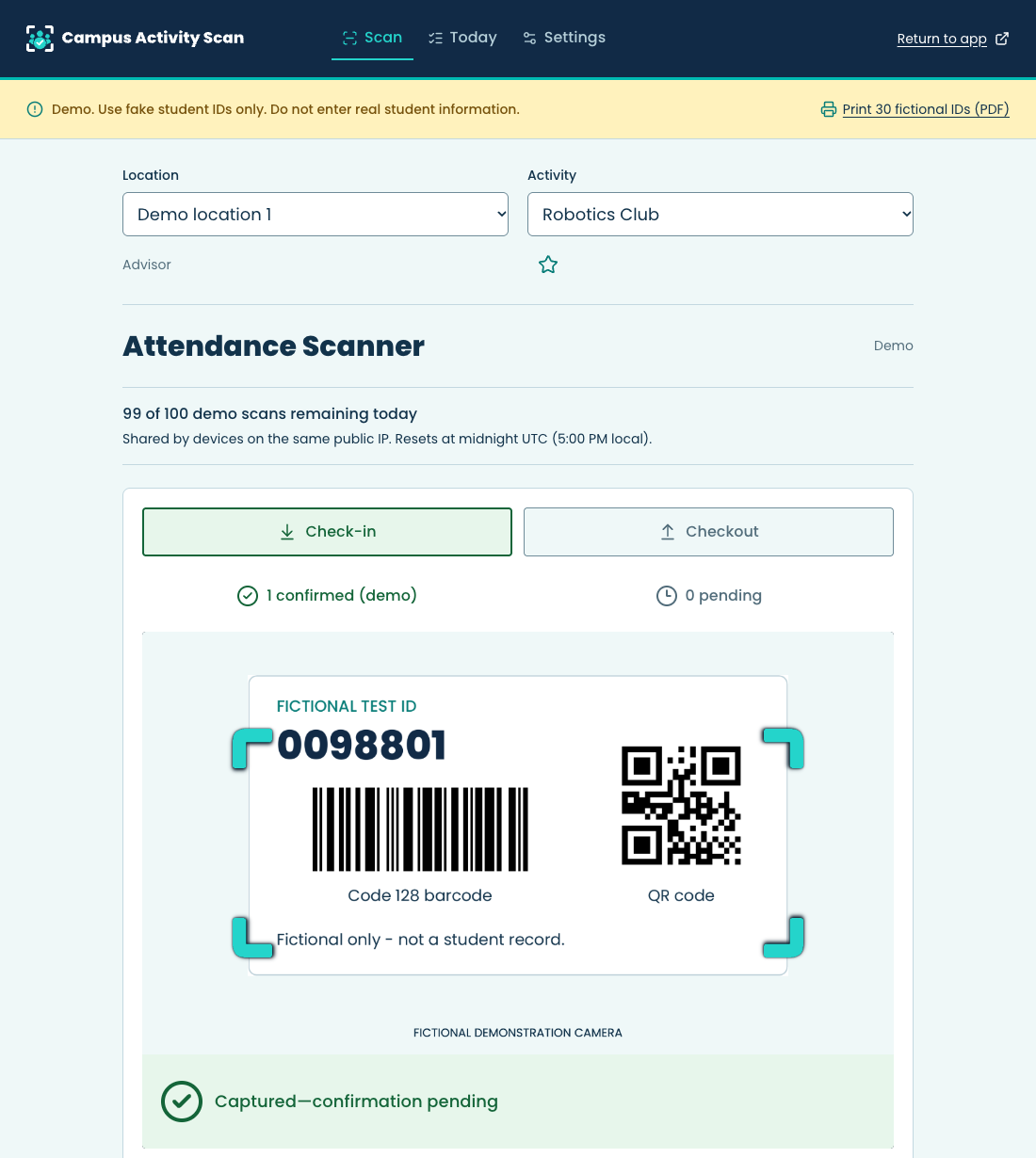
Campus Activity Scan helps staff at schools, colleges and universities record participation using compatible student ID cards. Create a named activity, select it before scanning, and record check-ins or checkouts. Managers with independently authorized Google Sheet access can review participation and prepare reports there.
Use the same attendance workflow for a lunchtime gaming club, an after-school tutoring group, a team practice, a student-organization meeting, a dance or a field trip. Clear activity names help staff choose the right destination and help managers understand the resulting data.
For recurring clubs, create the activity once, assign the appropriate staff and record participation as students arrive. Staff can select check-in or checkout for the session. Managers can review records by activity and date in Google Sheets.
3D Printing Club, Coding Club, Robotics, Engineering, Science Club, Maker Club, Electronics
What staff can learn from the attendance records: How many students attend, which sessions draw interest and whether participation continues.
Gamers Club, Chess Club, Board Games, D&D Club, Esports
What staff can learn from the attendance records: Participation across meetings and how many distinct students the program reaches.
Art, Ceramics, Creative Writing, Drama, Dance, Band, Choir, Orchestra
What staff can learn from the attendance records: Attendance at workshops, rehearsals and performances.
Yearbook, Journalism, School Newspaper, Broadcasting, Podcasting, Photography, Debate, Speech
What staff can learn from the attendance records: Participation in meetings, production sessions and events.
Student Council, Honor Society, Peer Mentoring, Student Ambassadors, Community Service, Volunteer Projects
What staff can learn from the attendance records: Which students participated and how often a project met.
FFA, FBLA, DECA, FCCLA, SkillsUSA, HOSA, Entrepreneurship
What staff can learn from the attendance records: Participation in meetings, preparation sessions and competitions.
Language Club, Multicultural Club, Book Club, GSA, New Student Welcome
What staff can learn from the attendance records: Reach and repeat participation in opportunities for connection.
Fishing Club, Garden Club, Environmental Club, Hiking, Running, Fitness, Yoga
What staff can learn from the attendance records: Attendance at meetings, supervised outings and activity sessions.
For a lunchtime program such as Gamers Club, student ID check-in can replace a separate handwritten sign-in step. After delivery is confirmed, the resulting record is ready for the manager's spreadsheet work instead of needing to be typed again after the activity.
School counselors and student-support teams can use attendance records for study-skills groups, friendship groups, transition support, peer mentoring, career-readiness workshops and other planned student programs. Teachers can use the same workflow for tutoring, homework club, intervention sessions, test preparation and supervised study hall.
An attendance record helps answer practical questions: Who attended this session? How many sessions did each student attend? Did a student stop participating? How many distinct students received this opportunity?
Participation is one part of evaluating a program. Managers can combine attendance with separately collected surveys or authorized school data in their own reporting workflow. A record of attendance alone does not establish that a program improved grades, behavior or school-day attendance.
Use activity names appropriate for the staff who can see them. Keep confidential counseling notes and sensitive student information in the school's designated systems.
Record participation in team practices, tryouts, conditioning, intramurals, open gym, weight-room sessions and team meetings. Select the correct activity before students arrive so records from different teams or events stay distinguishable.
Examples include "Basketball - Practice," "Volleyball - Open Gym," "Track - Conditioning" and "Soccer - Tryouts."
For a tryout, a check-in records that a student participated; team selection remains a staff decision. When both check-in and checkout are recorded, managers can use those timestamps in their own spreadsheet analysis. A missing checkout should not be presented as a measured duration.
A student can pay for a dance without attending, and attending the dance is a separate event from purchasing a ticket. Keeping those two records separate makes the data easier to understand.
This provides a staff-recorded list of payment confirmations and a separate list of students who attended. Managers can identify paid students without recorded attendance and attendance records needing review against the school's ticket records.
The app does not collect money or confirm a transaction with the school's payment provider. "Paid" is the meaning staff assigns to that activity. Amounts, refunds and receipts remain in the school's payment records. Normal scans do not verify student eligibility or consult an external bookkeeper system.
Count distinct IDs from the relevant check-ins instead of counting every spreadsheet row; checkouts and repeated records are not additional ticket purchases. Use the full purchase period when reviewing the Paid activity, because tickets may be sold across several days.
For the next dance, create new event-specific activities and archive the old ones when appropriate. This keeps one event's payment confirmations separate from the next event.
For a museum visit, college tour, outdoor education trip, competition or fishing trip, create clear activities for each checkpoint you need to record.
For example:
Record student IDs at each checkpoint. Authorized staff can reconcile those records with the school's approved trip roster and conduct the required head counts before departure.
These records support the staff's trip process. A scan is a record of a check at a particular time, not live location tracking. Keep the school's required roster, permission and supervision procedures in place.
For multiple buses, use distinct activity names when separate boarding records would be useful, such as "Museum Trip - Bus 1 Outbound" and "Museum Trip - Bus 1 Return."
Use a named activity for pep rallies, assemblies, reward lunches, movie events, homecoming, prom, orientation, student workshops, college and career events, leadership days, field days and graduation rehearsals.
Examples include "Grade 8 Orientation," "Career Workshop," "Reward Lunch - October" and "Graduation Rehearsal."
Where several staff members check students into the same event, each authorized advisor can use their own account and device. Managers retain control of location permissions and activity setup.
The student attendance workflow is intended for students with supported IDs. Keep separate visitor/guest procedures when attendees do not have those IDs.
Campus programs also need a clear record of who participated. Consider the workflow for student organizations, campus gaming or esports clubs, intramural sports, peer mentoring, orientation sessions, academic workshops, career events and student-led service projects.
Examples include "Student Organization - Weekly Meeting," "Intramural Volleyball," "New Student Orientation," "Career Workshop" and "Campus Volunteer Day."
When an event has multiple stages, give each stage its own clear activity name. Where staff confirms a student-event payment, use separate Paid and Attendance activities just as in the dance example.
Managers can save the number of numeric digits required for their location's student IDs, from 1 to 32; 7 is the default. If cards include extra letters or symbols, the optional cleaning setting removes those characters before validating the remaining digits. Check that your actual card/barcode format is supported, and tell us about your IDs and activities in the information-request form. Staff access, Google Sheets reporting and any guest process should be set up for your institution's needs.
Managers with authorized Google Sheet access can use its filters, formulas, pivot tables and charts to answer questions such as:
Use the activity, date, student ID and check-in/checkout action to define what you are counting. Two rows for one check-in and checkout are not two participating students.
Attendance-based reports differ from outcome analysis. To compare participation with grades, surveys or school attendance, managers need separately authorized data and an appropriate reporting method. Campus Activity Scan does not automatically fetch those records or provide a separate reporting dashboard.
The time-saving opportunity comes from recording attendance once, using the same workflow across programs and avoiding separate handwritten lists that later need transcription. Actual savings depend on the activity, devices and local process.
Yes. In Manager Settings, choose the required number of ID digits and click "Save ID settings." Seven digits is the default; your institution can save a numeric length from 1 to 32 digits. An optional setting removes letters and symbols before checking the digits. For example, "A1234567B" becomes the seven-digit ID "1234567." Leading zeros are kept. Extra numeric digits are not cut off, and old attendance records are not changed. Test your actual card and barcode format before use; not every barcode or alphanumeric campus ID is supported.
Staff collects or verifies payment through the school's existing process. Scanning into "Dance - Paid" records that staff-confirmed status. The activity name does not connect to a payment provider or make an attendance scan a payment check.
Yes. Named activities can represent tutoring, counselor groups, sports practices, student events, dance check-ins and field-trip checkpoints.
No student account is needed for this workflow. Staff records students using their supported ID cards or supervised manual ID entry. Staff members use their own authorized accounts.
Advisor access is for authorized scanning and personal submission status. Spreadsheet access and historical analysis require independently granted Google permissions; app roles and Google file sharing are separate. The app does not give scan-only advisors historical payment lookups, spreadsheet links or Google credentials.
The accepted invitation's link becomes inactive. The teacher keeps their approved access and assignments; the unused link's deadline does not require monthly reapproval. Normal sign-in, session and applicable authenticator requirements remain in place. Access can still be removed through the existing management controls.
Start the scanning session online and monitor submission status. An active session can keep capturing during a connection interruption until ten minutes pass without a new valid entry, subject to current session and authenticator-verification limits. Pending records expire 24 hours after their original capture and must reconnect and finish delivery before then. Midnight resets Today, not the pending queue. Reopen with the same account, device and browser before the deadline. Phone-lock or closed-app delivery is not guaranteed. A queued scan has not necessarily reached Google Sheets.
Campus Activity Scan records activity participation. Schools continue to use their established systems for official school-day attendance, student rosters, payments, permission forms and related records. It does not automatically fetch those records or synchronize with Infinite Campus.
Choose one club or event, give it a clear name and use a consistent check-in process. Once the workflow works for your staff, extend it to other activities and use your Google Sheet to see the participation patterns.
Your institution must authorize student-data use and review the current privacy, access and recovery arrangements first. App access or a demonstration does not establish district or institutional approval.
Open Campus Activity ScanTell us about your institution and the activities you want to track. Ask about setting up Campus Activity Scan for your school, district, college, or university.
ASCA: The School Counselor and Group Counseling (opens in a new tab) discusses using data to plan groups and evaluate participation outcomes.
CDC: Enhance Connectedness Among Students, Staff, and Families (opens in a new tab) describes opportunities to support student connection, including student-led clubs.
These resources provide educational context. They do not evaluate or endorse Campus Activity Scan.